
The mistake is almost never a lack of effort. It is optimising in the wrong order. Minifying CSS saves kilobytes while a single unoptimised hero image costs megabytes, and plenty of sites have had their stylesheets tidied while a 4 MB photograph sat untouched at the top of the page.
Diagnose first. Then fix in order of impact, and stop when the numbers are good enough — which is earlier than most people think.
Step one: diagnose before you fix
Run the page through Google PageSpeed Insights and read two things.
Field data. Real measurements from actual visitors over the past 28 days. This is what Google uses for ranking. If your traffic is low the section may be empty, which is not a failure — it just means you are working from the lab data below.
One detail worth knowing before you read your own numbers: each metric is assessed at the 75th percentile of page loads, not the average. Three quarters of your visits have to clear the threshold. An average that passes while the slowest quarter sits well over it is a page that fails, and averages hide exactly that.
Lab data and opportunities. A simulated run showing specific issues. Treat the opportunities list as a prioritised to-do, not a scoreboard.
Ignore the overall score. A 90-something on a page nobody can use is worthless, and a 70 on a genuinely fast page is fine. The three Core Web Vitals are what matter, and they are measured separately because they fail separately.
Google revises these metrics periodically — INP only replaced First Input Delay in 2024 — so check the thresholds against web.dev rather than against an article, this one included, before you act on a number near a boundary.
The three metrics that count
| Metric | Measures | Good | Needs work | Poor |
|---|---|---|---|---|
| LCP | How long until the main content appears | Under 2.5s | 2.5–4s | Over 4s |
| INP | How quickly the page responds to interaction | Under 200ms | 200–500ms | Over 500ms |
| CLS | How much the layout jumps while loading | Under 0.1 | 0.1–0.25 | Over 0.25 |
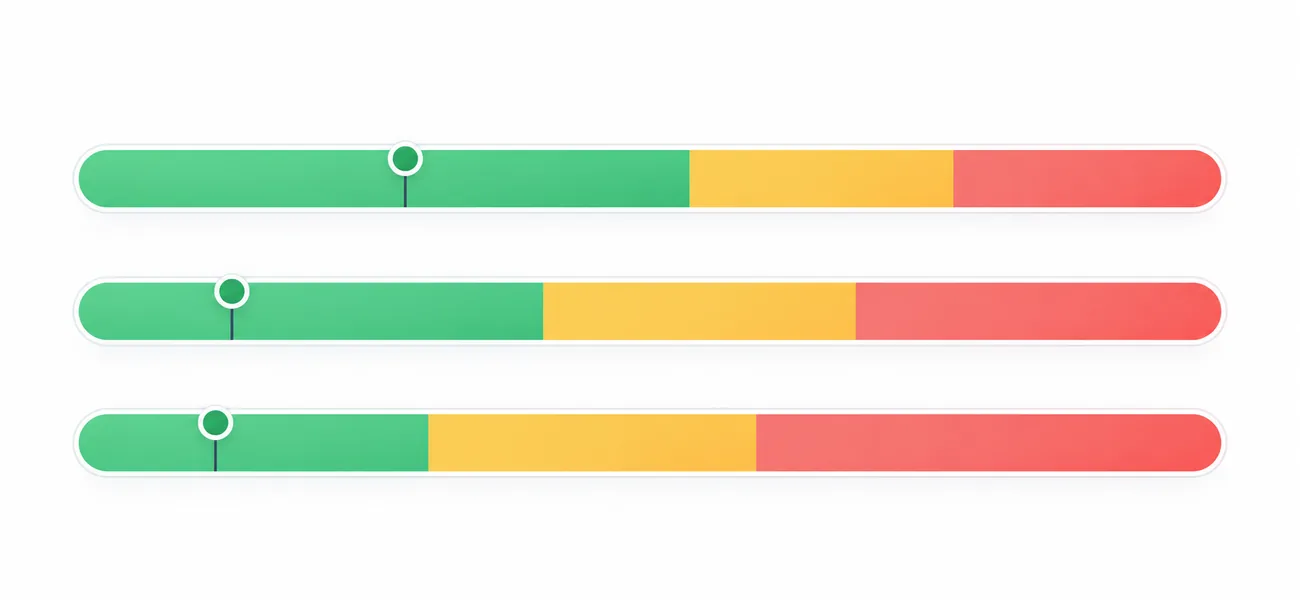
Test on mobile, not desktop. That is where most of the traffic is, where the connections are slower, and what Google indexes. A desktop pass on a mobile-failing page tells you nothing useful.
The twelve fixes, in order of impact
Most slow sites are slow for the same three reasons: oversized images, render-blocking JavaScript, and underpowered hosting. Those three resolve the majority of the problem on most sites. The remaining nine are the polish.
1. Fix your images
Images are typically 50–70% of total page weight, and unoptimised images are the single most common cause of poor LCP. This is the biggest win on most sites, and it needs all of the following rather than any one of them:
- Convert to WebP — usually 25–35% smaller than JPEG at equivalent quality
- Resize to actual display dimensions. A 4000px-wide photo shown at 800px is wasting roughly 80% of its bytes
- Compress: aim under 150 KB for most images, under 300 KB for full-width heroes
- Set explicit
widthandheight. This fixes layout shift, not just loading - Lazy-load everything below the fold with
loading="lazy" - Preload the hero and never lazy-load it. Lazy-loading your LCP element actively makes LCP worse, and it is a common own goal on sites that have otherwise done the work
- Serve responsive sizes with
srcsetso phones do not download desktop files
2. Eliminate render-blocking resources
CSS and JavaScript in the <head> stop the page rendering until they have downloaded and parsed. The browser is waiting on files the visitor cannot see.
- Inline critical CSS for above-the-fold content
- Defer the rest
- Add
deferorasyncto any JavaScript not needed immediately - Remove unused CSS and JavaScript — most sites ship a great deal of both
3. Upgrade hosting
The fix people avoid because it costs money, and frequently the one that matters most. Cheap shared hosting means competing for resources with hundreds of other sites.
Signs hosting is the bottleneck: Time to First Byte over 600ms, performance that degrades under traffic, and a site that is slow even on a near-empty page.
Moving from $5-a-month shared hosting to $25–$50 managed hosting often produces a larger improvement than every other item on this list combined. If the server takes 1.5 seconds to send the first byte, no amount of front-end work gets LCP under 2.5.
4. Enable caching
Caching serves pre-built pages instead of generating them on every request. Three kinds matter: browser caching so returning visitors reuse local assets, page caching to serve static HTML rather than running database queries per visit, and object caching for dynamic sites with heavy database use.
On WordPress one good caching plugin handles all three. Running two simultaneously causes conflicts — pick one.
5. Use a CDN
A content delivery network serves assets from a location near each visitor. The improvement is dramatic for geographically spread audiences and modest for purely local ones, so judge it by where your traffic actually is. Most CDNs have a free tier sufficient for a small site.
6. Reduce third-party scripts
Analytics, chat widgets, heatmaps, ad pixels, embedded video, review widgets, font loaders. Each adds requests and competes for the main thread, and they accumulate invisibly because adding one is a five-minute decision nobody revisits.
Audit quarterly and remove anything not earning its place. Load what survives asynchronously. On an established site this is often the largest single saving and the least disruptive, because nothing visible changes.
7. Optimise fonts
Custom fonts cause both slow rendering and layout shift, and the second is the one people miss.
- Limit to two families and only the weights you use
- Self-host rather than loading from a third party where you can
- Use
font-display: swapso text renders immediately in a fallback - Preload the primary font file
- Subset to the character sets you need
8. Minify CSS, JavaScript and HTML
Strips whitespace and comments. Worth doing and usually automated by a build process or caching plugin — but expect modest gains. This is the item most often done first and it belongs eighth.
9. Enable compression
Gzip or Brotli on the server substantially reduces the transfer size of text assets. Brotli is better where supported. It is a server setting, usually on by default with good hosting, and worth verifying rather than assuming.
10. Clean the database
Databases accumulate post revisions, spam comments, expired transients and orphaned rows from deleted plugins. On an older WordPress site this measurably slows query times. Clean quarterly, and back up first — every time, without exception.
11. Audit plugins and extensions
Every plugin adds code, and some add requests on every page regardless of whether they do anything there.
- Deactivate and delete anything unused — a deactivated plugin still carries security risk
- Replace several single-purpose plugins with one multi-function alternative where that makes sense
- Check whether a plugin loads its assets site-wide when it is needed on one page
Quality matters more than count, but both matter. Ten lightweight plugins beat three badly built ones.
12. Fix layout shift specifically
CLS is the easiest metric to fix and the most commonly ignored, partly because it does not feel like “speed”. It is still a third of the assessment.
- Set explicit dimensions on all images, videos and iframes
- Reserve space for ads and dynamically injected content
- Never insert content above existing content after load
- Use
font-display: swapwith a fallback metrically similar to the web font - Never animate properties that trigger layout — use
transformandopacity
Why this is worth the time
Rankings. Page experience is a confirmed ranking signal — Google’s own documentation says so. It will not outweigh relevance, but between two comparably useful pages it can be the difference.
Conversion. Speed affects conversion independently of rankings. Slow pages lose visitors before they see anything, and the losses concentrate on mobile where patience is shortest. If you want the arithmetic on what that is worth for your own store, the revenue leak calculator runs it.
Advertising costs. Landing page experience feeds Google Ads quality scoring, so a slow landing page raises cost per click for the same position. You pay for the slowness twice.
Crawl efficiency. Faster sites get crawled more thoroughly, which matters for large sites and for how quickly new content gets indexed.
Platform-specific notes
The twelve fixes apply everywhere, but which ones are available to you depends on what you built on. If you are still choosing, the platform comparison covers the trade-offs beyond performance.
WordPress
The most common offender and the most fixable. Priority order: hosting, images, a caching plugin, a plugin audit, then everything else. Page builders add significant weight — if you use one, check what it loads on each page rather than assuming it only loads what is on screen.
Shopify
Hosting and caching are handled for you, so your levers are the theme (some are far heavier than others), the apps (each adds scripts to every page) and image optimisation. An app audit is usually the biggest win, and on fragrance and luxury stores specifically, the heavy imagery and video that carry the brand are also what carry the weight.
Webflow and Wix
Clean code and good infrastructure out of the box. Your levers are image optimisation, limiting animations and interactions, and font choices. Less to fix, and less you can fix.
Custom builds
Full control means full responsibility. Focus on bundle size, code splitting, server response time, and whether you genuinely need the framework you are shipping.
What “fast enough” means
Chasing a perfect score is a poor use of time. Reasonable targets:
- LCP under 2.5s on mobile, on a mid-range device
- INP under 200ms
- CLS under 0.1
- Time to First Byte under 600ms
- Total page weight under 2 MB, ideally under 1 MB
Get into those ranges, then spend the remaining effort on content and conversion, which almost always have more room for improvement than shaving another 200 milliseconds. Speed belongs on the pre-launch checklist alongside everything else that has to be right on day one, rather than being treated as a project of its own.
If the constraint turns out to be the build rather than the configuration — a theme that cannot be made fast, or a framework doing more than the site needs — performance and custom builds is the work that addresses it. Most sites never get that far, which is why it is at the bottom of this page rather than the top.
Frequently asked questions
Why is my website slow?
The three most common causes are oversized unoptimised images, render-blocking JavaScript and CSS, and underpowered shared hosting. Beyond those, excessive third-party scripts, too many plugins, missing caching and unoptimised fonts are the usual contributors.
What is a good page load time?
Aim for Largest Contentful Paint under 2.5 seconds on mobile, which is the threshold Google treats as good. Time to First Byte should be under 600ms and total page weight ideally under 1–2MB.
Does website speed affect SEO?
Yes. Page experience including Core Web Vitals is a confirmed ranking signal, though relevance matters more. Speed also affects conversion rate, Google Ads quality scoring and how thoroughly your site gets crawled.
What are Core Web Vitals?
Three metrics Google uses to measure page experience: Largest Contentful Paint (how long until main content appears, target under 2.5s), Interaction to Next Paint (how quickly the page responds to input, target under 200ms), and Cumulative Layout Shift (how much the layout moves during load, target under 0.1).
How do I improve Largest Contentful Paint?
Optimise and preload the largest above-the-fold element, usually the hero image. Convert it to WebP, size it correctly, never lazy-load it, remove render-blocking resources, improve server response time through better hosting, and enable caching and a CDN.
Do too many plugins slow down a website?
Plugin quality matters more than count, but both have an effect. A poorly built plugin loading assets on every page does more damage than ten lightweight ones. Audit quarterly, delete rather than deactivate anything unused, and check whether plugins load site-wide when only needed on one page.
Is a 100 PageSpeed score necessary?
No. The score is a simplified summary and chasing it has diminishing returns. Focus on passing the three Core Web Vitals thresholds in field data, which is what Google actually uses, then move your attention to content and conversion.
Conclusion
Website speed work follows a reliable pattern: three fixes deliver most of the improvement and the other nine deliver the polish. Start with PageSpeed Insights on mobile, fix your images, deal with render-blocking resources, and be honest about whether the hosting is adequate.
If you are still slow after those three, work down the list. Most sites never need to, and the ones that do usually find the answer in the scripts they stopped noticing years ago.
If the site is slow because of how it was built rather than how it is configured, get a free mockup — we’ll show you what the rebuilt version looks like, and what it would weigh.